Using the OOTB Product Catalog in the ServiceNow Business Portal
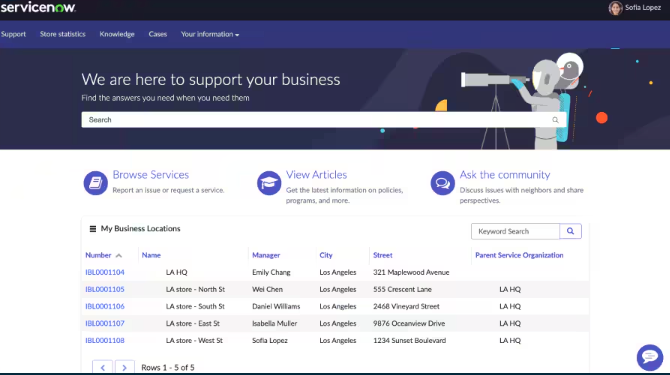
When configuring self-service for customers in ServiceNow, the goal is simple: make it easy for customers to find the right products, understand what is available to them, and submit an order without needing to speak to an agent.
The challenge is that the documentation for using the Product Catalog with the Business Portal can feel fragmented. The capability is there, but the setup path is not always obvious if you are trying to bring together Customer Service, Sales and Order Management, Product Catalog Management, pricing, cart, checkout, and customer-facing portal visibility.
This post pulls the key pieces together into one place.
The aim is to help others who want to use the out-of-the-box Product Catalog to serve customers through self-service in the Business Portal.
The Scenario
I am configuring the ServiceNow Business Portal for customers who need to browse available products, view product offerings, add items to a cart, and submit orders through a guided self-service experience.
The portal application is:
sn_b2b_portal
The wider solution brings together Product Catalog Management, Sales Cart, Customer Service, and Order Management capabilities.
To make the experience work properly, I need a way for customers to:
- Access the Business Portal.
- Browse Product Offering Catalogs and Categories.
- View Product Offerings they are eligible to buy.
- See appropriate pricing.
- Add products to a cart.
- Complete checkout.
- Track orders and, where required, raise order-related cases.
Once configured correctly, the Business Portal becomes a clean self-service route for customer ordering.
Why Use the Business Portal Product Catalog?
The Business Portal provides a streamlined customer-facing experience for browsing and ordering products.
Rather than relying on agents to manually guide customers through product selection, the portal allows customers to discover eligible products themselves and move through the purchasing journey in a structured way.
For organisations looking to scale digital service, this is important. It shifts common ordering activity into a self-service channel while still keeping the order lifecycle connected to ServiceNow.
Key Benefits for Customers
The main value is not just that customers can order online. The value is that the experience is controlled, guided, and connected to the wider ServiceNow process.
- Self-service product discovery: Customers can browse products and offerings organised into catalogs and categories.
- Faster ordering: Customers can use cart and checkout flows without needing manual agent support.
- Improved accuracy: Visibility rules help ensure customers only see products that are relevant and available to them.
- Consistent experience: Product browsing, ordering, order tracking, and case handling can all sit within the same customer-facing portal.
- Reduced operational effort: Agents spend less time handling straightforward ordering requests and more time supporting exceptions.
Required Applications and Plugins
Before configuring the catalog experience, install the required applications using the Application Manager.
The order matters. Install the required applications in the following sequence:
- Order Management Portal
sn_ord_mgmt_portal - Product Catalog Management Portal
sn_prd_pm_portal - Customer Service Portal
sn_csm_portal - Business Portal
sn_b2b_portal - UI Components for Customer Portals
sn_ciwf_ui_cmpnt - Sales Cart plugin
sn_sales_cart
These applications provide the foundation for the portal, product catalog experience, customer service integration, cart, and order journey.
Enabling the Business Portal
Once the required applications are installed, the Business Portal needs to be enabled.
Before You Begin
- Role required: admin
- Confirm all required applications and plugins are installed.
Procedure
- Open CSM Configurable Workspace.
- Navigate to All > Portals.
- Select Business Portals.
- Clear the Inactive checkbox.
- Select Save.
At this point, the Business Portal is available, but the catalog experience still depends on visibility rules, product catalog data, pricing, and the correct supporting configuration.
Understanding Catalog Visibility
One of the first things to understand is that the Product Catalog menu visibility is controlled.
The out-of-the-box logic uses the script include:
CustomerPortalCatalogAccessUtil
This controls whether a customer user can see the Product Catalog menu items in the portal.
This is an important part of the experience because not every external user should automatically see the catalog. Visibility is based on role and account context.
OOTB Visibility Requirements
Out of the box, a user must meet the following conditions.
The user must:
- Be logged in.
- Have the role
sn_customerservice.customer. - Have an associated Company record.
The user must not have any of the following roles:
sn_customerservice.customer_adminsn_customerservice.consumersn_customerservice.partnersn_customerservice.partner_admin
This means that if the catalog is not appearing for a test user, the first place to check is not necessarily the catalog data. It may be the user's role or company association.
OOTB Script Include
The out-of-the-box script include follows this pattern:
var CustomerPortalCatalogAccessUtil = Class.create();
CustomerPortalCatalogAccessUtil.prototype = {
    initialize: function() {},

    canShowCatalogMenuItem: function() {
        var user = gs.getUser();

        if (!gs.isLoggedIn()) {
            return false;
        }

        if (!user.hasRole("sn_customerservice.customer")) {
            return false;
        }

        if (!user.getCompanyID()) {
            return false;
        }

        var excludedRoles = [
            "sn_customerservice.customer_admin",
            "sn_customerservice.consumer",
            "sn_customerservice.partner",
            "sn_customerservice.partner_admin"
        ];

        for (var i = 0; i < excludedRoles.length; i++) {
            if (user.hasRole(excludedRoles[i])) {
                return false;
            }
        }

        return true;
    },

    type: "CustomerPortalCatalogAccessUtil"
};
This makes the visibility logic clear. The Product Catalog is intended for customer users who are associated to a company, while excluding other customer, consumer, and partner role types.
Configuring Product Catalog Data
Once the portal is enabled and the user can see the catalog menu, the next step is making sure there is product data to display.
At a minimum, the following need to be configured and published:
- Product Offering Catalogs
- Product Offering Categories
- Product Offerings
These records work together to determine what customers see in the portal.
A simple way to think about it is:
- The Product Offering Catalog is the container.
- The Product Offering Category organises the experience.
- The Product Offering is the thing the customer can view and order.
If the portal loads but no products appear, check whether the relevant catalogs, categories, and offerings are published and correctly related.
Pricing
Pricing is another key part of the Business Portal experience.
Price Lists define how product and service pricing is presented to customers in the Business Portal and Sales and Order Management.
A Price List can represent different commercial models, such as:
- Standard pricing for a given currency, such as global GBP pricing.
- Regional pricing.
- Customer-specific pricing based on negotiated or contracted rates.
Beyond the Price List itself, additional pricing configuration can influence the final price shown to the customer. This may include attribute-based pricing, characteristics, or other product configuration choices.
This is an area worth designing carefully.
A pricing model that works for internal users may not automatically feel clear to a customer in self-service. If the customer cannot understand how the final price is reached, the portal experience becomes harder to trust.
A Practical Note on Bundles and Characteristics
When designing Product Offerings, think about how pricing will appear to the customer.
In some scenarios, bundles may provide a clearer experience than relying heavily on characteristic-driven price adjustments.
Characteristics can be useful, but not every adjustment is always obvious or dynamically presented in the portal in the way a customer might expect.
If transparency is important, a bundle-based approach may make the offer easier to understand.
The aim should be predictable pricing. Customers should know what they are selecting, what it costs, and what they are ordering before they reach checkout.
End-User Experience
Once configured, customers can use the Business Portal to move through the ordering journey.
The customer experience can include:
- Browsing the Product Catalog.
- Viewing Product Offering details.
- Adding items to the cart.
- Completing checkout.
- Viewing order history.
- Tracking order status.
- Raising or viewing order-related cases where enabled.
This gives customers a much more complete digital journey than a static portal page or manually submitted request form.
The key benefit is that the portal experience connects directly into Order Management, so the order lifecycle can continue after checkout.
Optional but Recommended: Self-Service Order Case Management
If customers need to raise and manage order-related cases from the portal, install the relevant self-service applications.
This extends the Business Portal so customers can handle scenarios such as:
- Order inquiries
- Order changes or amendments
- Order cancellation requests
- Technical or delivery issue tracking
The applications required to allow customers to create and view order cases from the Business Portal are:
- Order Case Self Service
sn_ord_case_ss - Order Case Playbook
sn_ord_case_pb
These applications have the following dependencies:
- Customer Service Portal
com.snc.customer_service_portal - Order Operations Case Management
sn_order_case - Playbooks for Customer Service Management
sn_csm_playbook
Viewing Order Cases Only
There is one useful distinction here.
If customers only need to view order cases in the Business Portal, you do not need to install:
- Order Case Playbook
sn_ord_case_pb - Playbooks for Customer Service Management
sn_csm_playbook
Those are only required where the fuller playbook-driven order case experience is needed.
Common Issues to Check
The Product Catalog menu does not appear
Check the user first.
- Is the user logged in?
- Does the user have
sn_customerservice.customer? - Does the user have an associated Company?
- Does the user also have one of the excluded roles?
The portal is active but no products are shown
Check the catalog data.
- Are Product Offering Catalogs configured?
- Are Product Offering Categories configured?
- Are Product Offerings configured?
- Are the relevant records published?
- Are the relationships between catalogs, categories, and offerings correct?
The customer sees products but pricing is unclear
Review the pricing model.
- Is the correct Price List being used?
- Is the currency correct?
- Are there customer-specific prices?
- Are characteristic-based adjustments clear enough for self-service?
- Would a bundle provide a clearer customer experience?
Customers cannot raise order cases
Check whether the self-service order case applications are installed and configured.
- Is
sn_ord_case_ssinstalled? - Is
sn_ord_case_pbrequired for the target experience? - Are the required dependencies installed?
- Is the portal configured to expose the case experience?
Best Practice
Treat the Business Portal Product Catalog as a complete customer journey, not just a catalog page.
- Install the required applications in the right order.
- Confirm the Business Portal is active.
- Validate customer roles and company association early.
- Keep catalog structures simple and easy to browse.
- Publish only the Product Offerings customers should actually use.
- Design pricing so it is transparent and predictable.
- Use bundles where they make the customer experience clearer.
- Enable order case self-service if customers need post-order support.
- Test using realistic external customer users, not just admin accounts.
The Takeaway
The out-of-the-box Product Catalog capability in the Business Portal is powerful, but it takes a few connected pieces to make the experience work properly.
You need the right applications installed, the Business Portal enabled, the correct customer visibility rules in place, published catalog data, pricing configuration, and optionally order case self-service.
Once those pieces are aligned, the Business Portal can provide a strong self-service ordering experience for customers.
Customers can browse what is available to them, understand the offer, add products to a cart, complete checkout, and track the order journey through ServiceNow.
For organisations using Sales and Order Management, this is a valuable way to reduce manual effort, improve ordering accuracy, and give customers a more modern digital experience.